
Connect WordPress to Era Write, add an application password and set publishing defaults for SEO article auto-posting.
Connecting a site lets Era Write send finished articles straight to WordPress — as drafts for you to check, or published live. It takes about five minutes and you only do it once per site.
What this gets you
- Publishing without copy and paste. Articles land in WordPress with their images, headings and FAQ already in place.
- Internal links that are actually right. Once your site is connected, Era Write can see the posts you already have and link new articles to the relevant ones. Internal linking is one of the few ranking signals entirely under your control.
- Your categories and tags. New posts get filed where they belong instead of landing in Uncategorised.
This is optional. Without a connected site you can still generate articles and keep them in your library — you simply export or copy them yourself.
Before you start
- A self-hosted WordPress site (a wordpress.org install on your own hosting).
- A WordPress user with Administrator or Editor rights.
- The site running on HTTPS. WordPress hides application passwords on plain HTTP.
Make an application password in WordPress
This part happens in WordPress, not here. An application password is a separate password that only lets an app in — it is not your login password, and you can revoke it at any time without changing anything else.
In your WordPress admin:
- Go to Users → Profile (or Users → All Users and open your own user).
- Scroll to the bottom, to Application Passwords.
- Type a name so you remember what it is for — Era Write does the job.
- Click Add New Application Password.
- WordPress shows a password in four blocks, like Fd7K bQ2m 9Xzt 4Lpw. Copy it now — it is never shown again.
Copy the spaces along with it. And keep it to yourself: anyone holding this password can post to your site, so treat it like a key rather than a setting.
No Application Passwords section? It arrived in WordPress 5.6, so update if you are older than that. If you are on 5.6 or newer and still cannot see it, the site is almost certainly being served over plain HTTP, or a security plugin has switched the feature off.
Add the site here
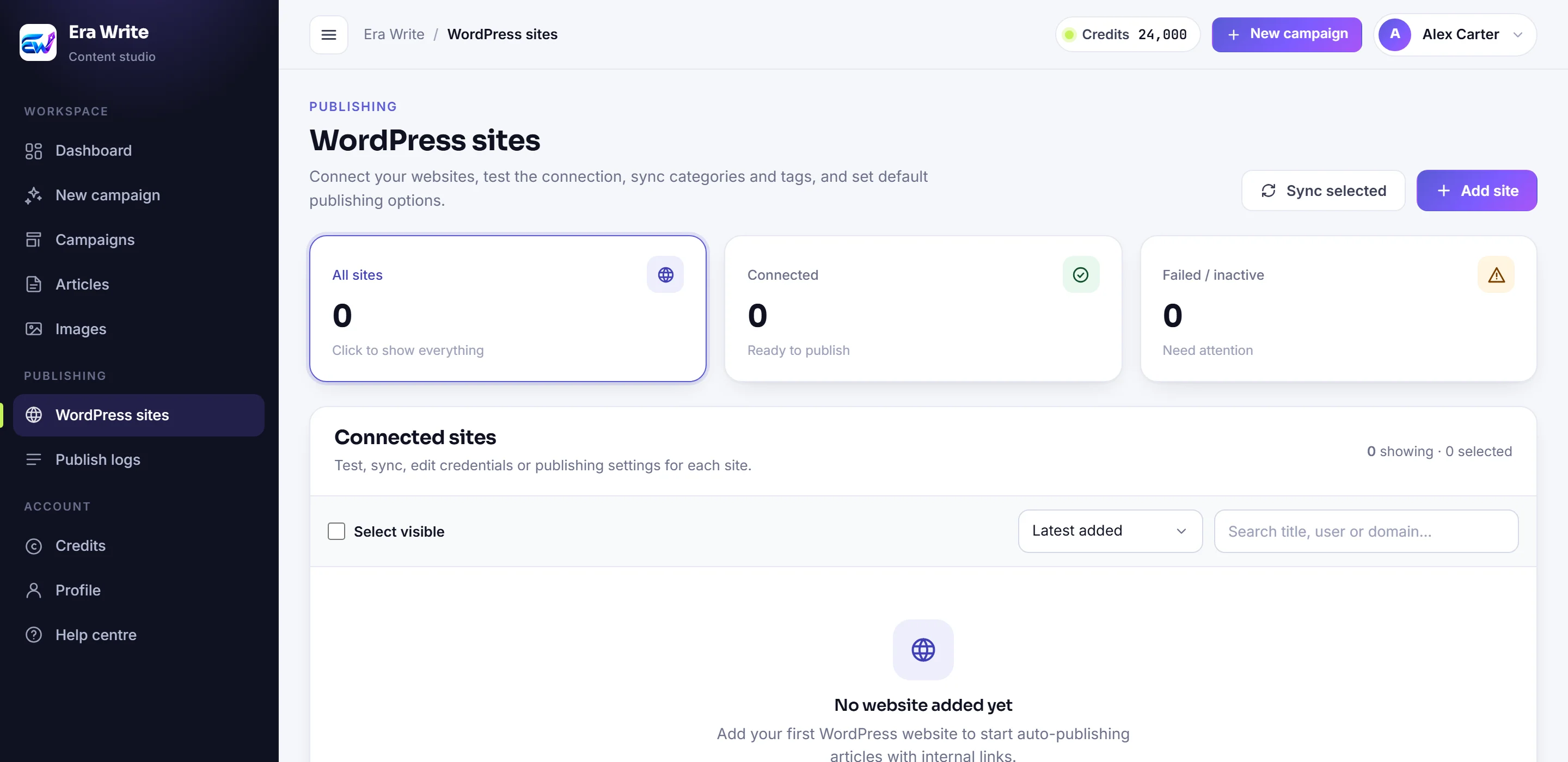
Back in Era Write, open WordPress sites in the left menu and click Add site.
Three things go in the form:
- Website URL — the full HTTPS address, like https://yoursite.com. No trailing path.
- WordPress username — the user you made the application password for. Your username, not your email.
- Application password — the one you just copied, spaces and all.
Default post status decides what happens to articles this site receives: Draft holds them for you to review, Publish puts them live straight away. Start on Draft until you trust it.
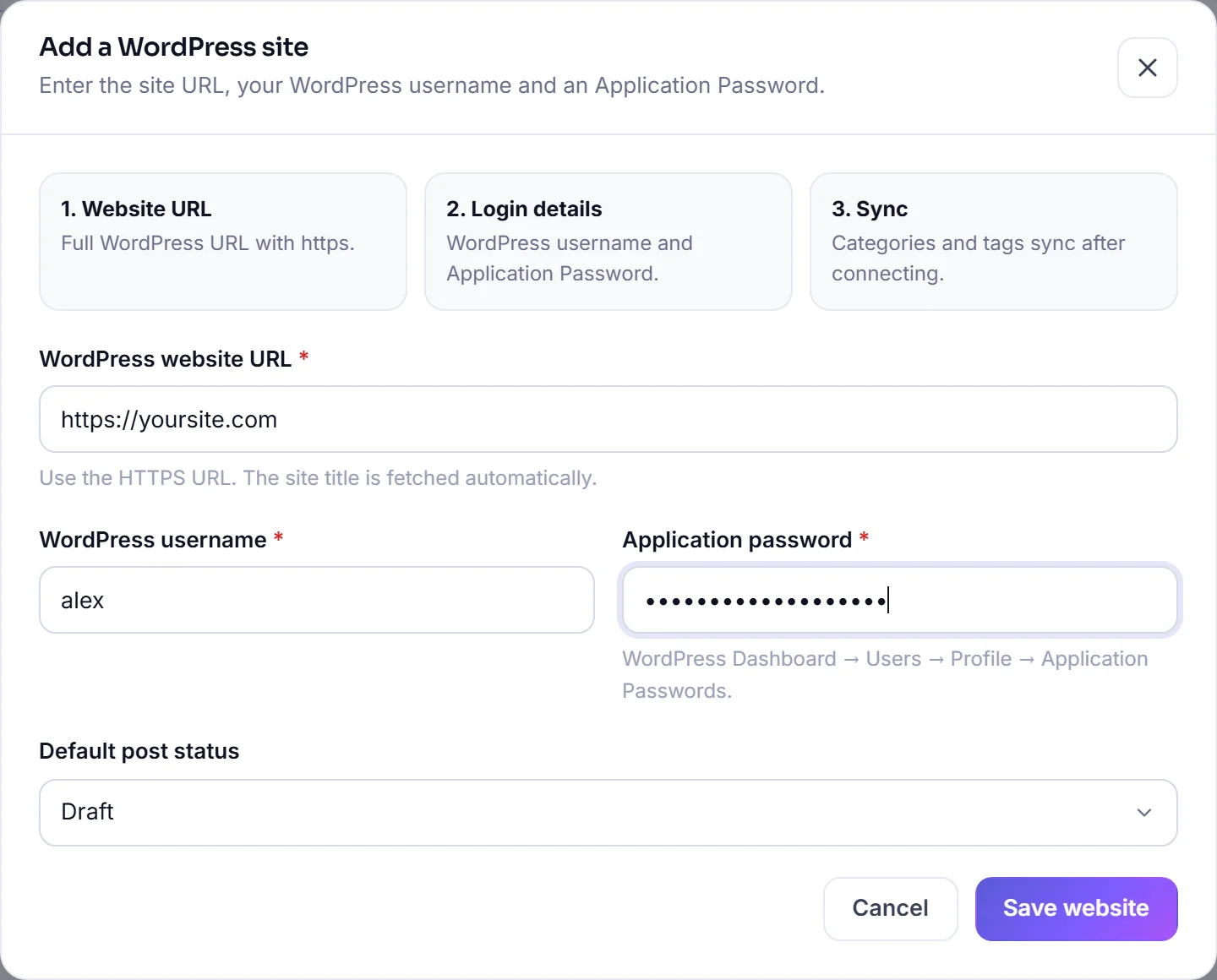
Click Save website. Saving already reaches out to your site, so if the details are right your categories and tags are pulled in there and then. The site title is read from your homepage — you do not have to type it.
Test the connection
Your site now appears in the Connected sites table. Click Test to confirm the login really works.

What the row tells you:
- Status — Connected means the login works. Untested means nobody has checked yet. Anything red needs attention.
- Post as — the default status articles arrive with, Draft or Publish.
- Synced — how many categories and tags were pulled in, and when.
A successful test also refreshes your categories and tags, so it is the one button worth pressing whenever you are unsure.
Sync categories and tags
Sync re-reads the categories and tags on your site. Run it whenever you add a new category in WordPress and want to file articles under it here.
Managing several sites? Tick them in the list and use Sync selected at the top to do them all in one go.
Set your defaults
Click Edit on the site. The panel has two halves.
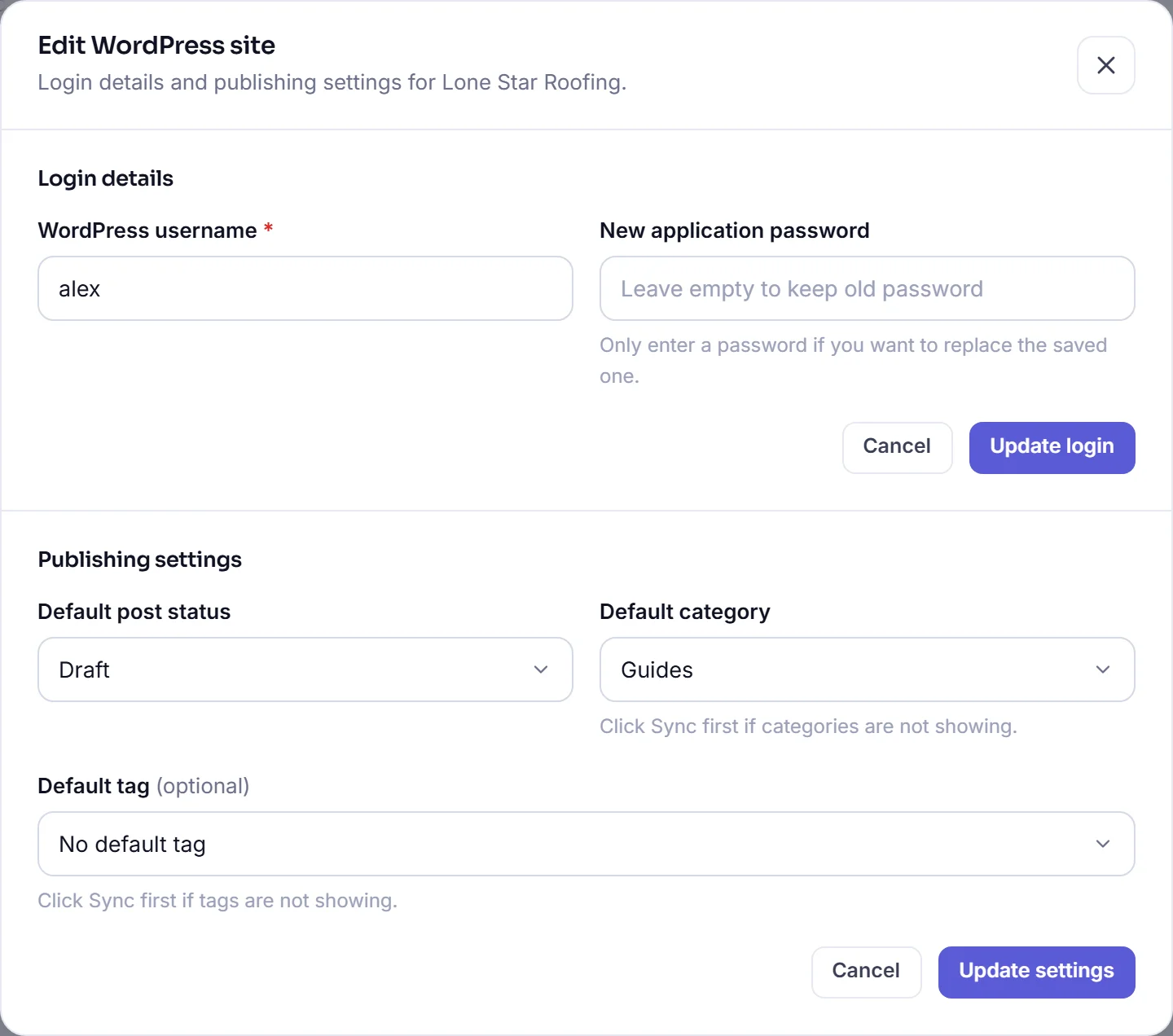
- Login details — the username, and a box for a new application password. Leave the password empty to keep the saved one. You need this when you revoke a password in WordPress and make a fresh one.
- Publishing settings — default post status, default category and an optional default tag. Every article sent to this site uses these unless the campaign says otherwise.
The category and tag dropdowns are filled from the last sync. Empty or out of date? Click Sync on the row first, then reopen this panel.
Using it in a campaign
The site is now available at step 4 of the campaign wizard, where you choose what happens to each finished article — save it, send it as a draft, publish it now, or schedule it out over time.
Worth knowing: pick your site there even when you are only saving articles. That is what lets new articles link to your existing posts. See the campaign guide →
If it will not connect
Almost every failure is one of these five:
- The normal login password was used. The most common mistake by a distance. It has to be an application password from step 1.
- The email was used instead of the username. WordPress wants the username here, even though it lets you sign in with either.
- The URL is wrong. Use the address WordPress actually lives at, with https://, and no /wp-admin on the end.
- A security plugin or firewall is blocking it. Wordfence, iThemes and some LiteSpeed setups block the WordPress REST API by default. Allow REST API access, or ask your host to.
- The password was revoked. Deleting it in WordPress kills the connection here. Make a new one and paste it into Edit → New application password.
Still stuck? Press Test, copy the error it shows, and send it to us — that message usually says exactly what your host is refusing.